

Mobile app recording for React Native and Expo
Record sessions of your own React Native or Expo app with screen, voice, taps, network and logs, then let your coding agent audit them. First 10 are free.
- First 10 recordings free
- iOS and Android
- Audited by your own agent
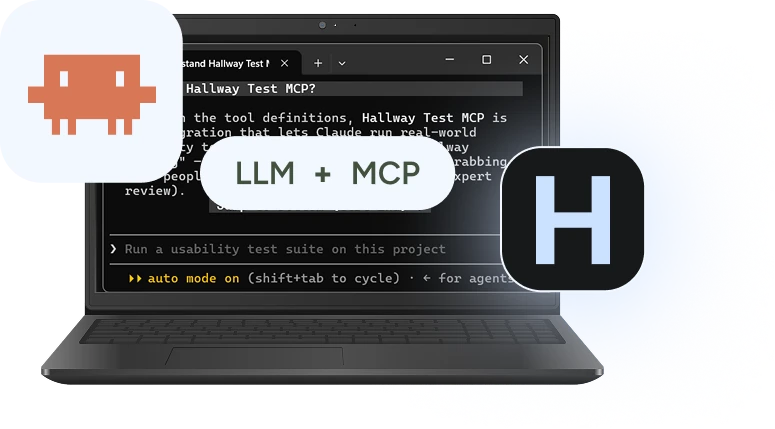
In short: add the Hallway Test SDK to your React Native or Expo app, record a session on your phone, and ask your coding agent to audit it. The agent gets the screen video, your voice, every tap and screen change, network requests, logs and crashes, and returns a table of problems with clickable timecodes. The first 10 recordings are free.
What you can do with it
- Record your own app. Tap the floating Rec button, shake the device or open a start link, use the app as usual, and stop. The recording uploads on its own, even after the app is closed.
- Watch it in your dashboard. Each app has a page with all of its recordings: the video with the event log beside it, crashes marked.
- Let your agent audit it. Paste the recording’s link into Claude, Cursor or Codex and ask for a UX audit. The agent reads the recording through the Hallway Test MCP and answers with evidence, not guesses.
- Share it with your team. Share an app with a teammate’s email. They see its recordings and can audit them with their own agent, but cannot change the app.
- Send it to a real tester. When you want fresh eyes, the same app can go to one of our in-house testers as a usability test.
What a recording captures
| Area | What is recorded |
|---|---|
| Video and voice | The app’s screen with the microphone. On iOS only your app is captured, never the Home screen or other apps |
| Touches | Taps, double taps, long presses, swipes, pinches, and the label of the view that was touched |
| Screens | Navigation state, screen changes, modals and the keyboard |
| Network | Requests, responses, failures and WebSocket messages, with sensitive headers redacted |
| Logs and errors | Console output, native logs, JavaScript errors, unhandled rejections, native crashes, frozen main thread |
| Device | Model, OS and app version, battery, connectivity, memory warnings, foreground and background |
Nothing is recorded until the person using the app starts and confirms a session. Password fields are never recorded as text.
How it works
- Create an app key. Sign in at mcp.hallwaytest.ai and open Mobile apps, or let your coding agent create one for you.
- Add the SDK. Ask your agent to set up Hallway Test in the project: the
setup_mobile_sdktool installs the SDK, adds it to your root component and tells you when the first recording arrives. The setup guide has the manual steps. - Record. Run a debug build on a real device, tap Rec, use the flow you want to check, tap Stop.
- Audit. Open the recording in your dashboard, copy its link and ask your agent: Audit this Hallway Test recording.
What the audit looks like
Every audit comes back in the same shape: one table, sorted by priority, where each timecode opens the video at that second. An example for a checkout flow:
| # | Priority | Problem | Timecodes | Recommendation | How to verify |
|---|---|---|---|---|---|
| 1 | High | “Pay” did nothing for 9 seconds; the request to /payments returned 500 and no error was shown | 1:12, 1:21 | Show an error and keep the button enabled when the payment request fails | Force a 500 on /payments: an error appears and Pay can be tapped again |
| 2 | Medium | The promo code field was tapped three times before the keyboard opened | 0:48, 0:50, 0:53 | Make the whole field tappable, not only the label | One tap on the field opens the keyboard |
| 3 | Low | The tester said “where do I see delivery time?” on the cart screen | 0:31 | Show the delivery estimate on the cart screen | The estimate is visible without scrolling |
The agent only reports problems it can prove with a moment in the recording. Read more in how to audit a mobile app recording.
Start with 10 free recordings
The first 10 recordings of your own React Native app are free, with no card and no call. Need more? Contact us and we will extend your plan.
Your first recording
- Create an app key in Mobile apps, or let your agent create it.
- Add the SDK with your agent or the setup guide.
- Record a session and ask your agent to audit it.
Usability tests with our in-house testers are priced separately, see pricing.
Mobile app recordings
Free: the first 10 recordings, no card needed.
Record your own React Native or Expo app, then let your coding agent find the UX problems in it.
- Screen video with voice, on iOS and Android
- Taps, screens, network requests, logs and crashes
- AI UX audit by your own coding agent over MCP
- Share the app and its recordings with teammates
Questions, answered
The screen video with the microphone, every tap, swipe and text input, the screens and navigation, network requests and WebSocket traffic, console and native logs, JavaScript errors, native crashes and frozen screens, and device information. Everything sits on one clock with the video, so a tap at 0:42 lines up with the frame at 0:42.
React Native 0.79 or newer with the New Architecture, and Expo SDK 53 or newer in a development build. Expo Go cannot load the SDK. Android records the screen on Android 8.0 and newer, iOS on iOS 15.1 and newer.
The first 10 recordings are free, with no card and no call. For more, contact us and we will extend your plan. Recordings are separate from usability tests with our testers, which cost test credits.
You, the people you share the app with by email, and the Hallway Test team. A shared app is read-only for everyone except its owner.
No, not by default. The SDK is linked into debug builds only; a release build contains none of its code. You can switch it on for an internal tester build, such as a TestFlight or Play testing track, in react-native.config.js.
Your coding agent does it, in Claude, Claude Code, Cursor or Codex, through the Hallway Test MCP tools. Hallway Test hands it the events, the transcript, frames from the video, errors and logs, plus the required format of the audit.